More ways to track time in eHour
Record separate pieces of work, review your day, fill in the familiar weekly grid, track time on your phone, or ask an AI assistant.
Not everyone tracks time in the same way. You might record work as you go, fill in the week at once, use your phone away from your desk, or ask an AI assistant while the context is still fresh. We have improved each of these ways of getting time into eHour.
Separate work, separate entries
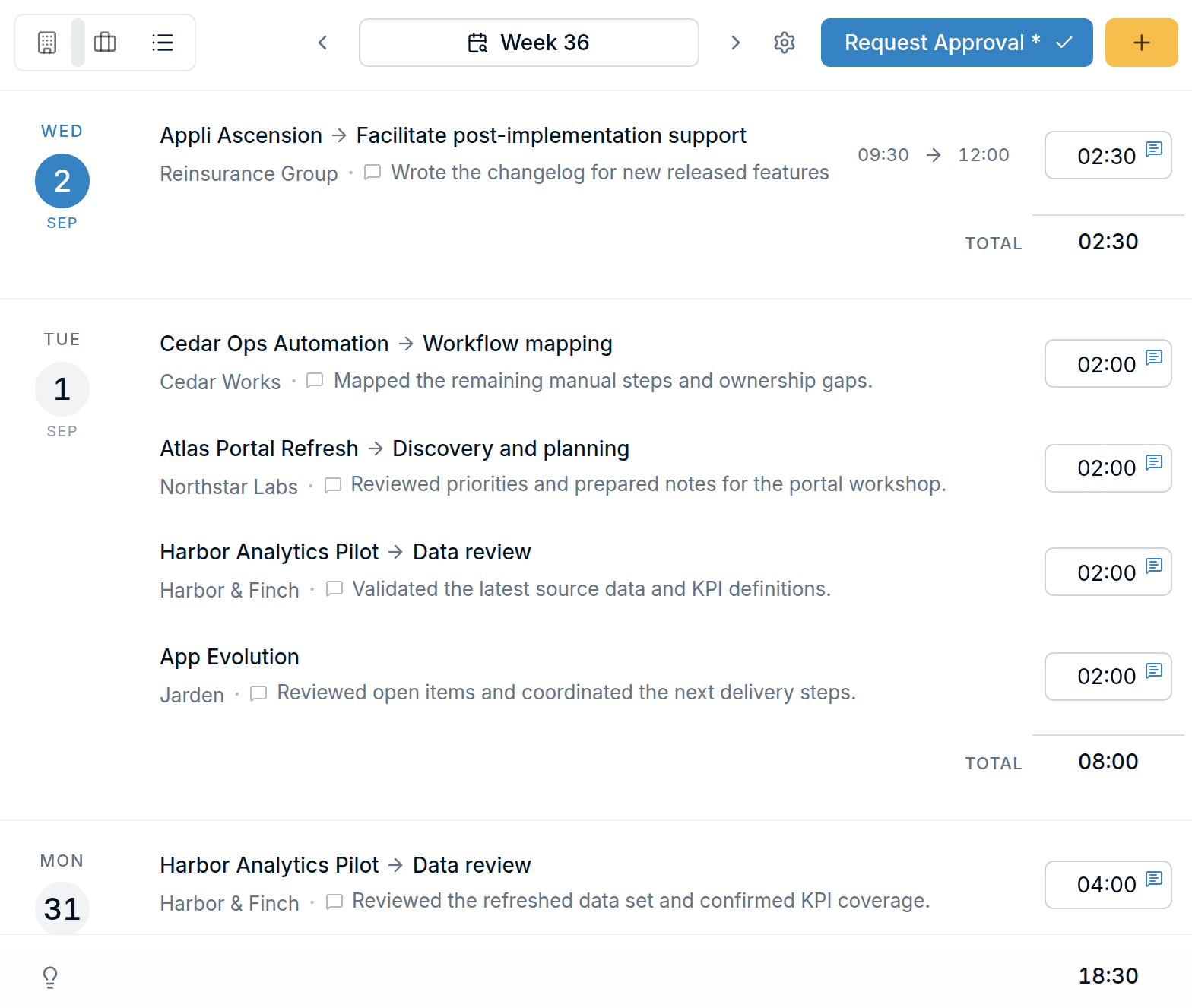
You can now add multiple entries for the same project or task on one day. Each gets its own duration and comment, with optional start and end times. A proposal and a client call can each have a proper description.
See what you did on Tuesday
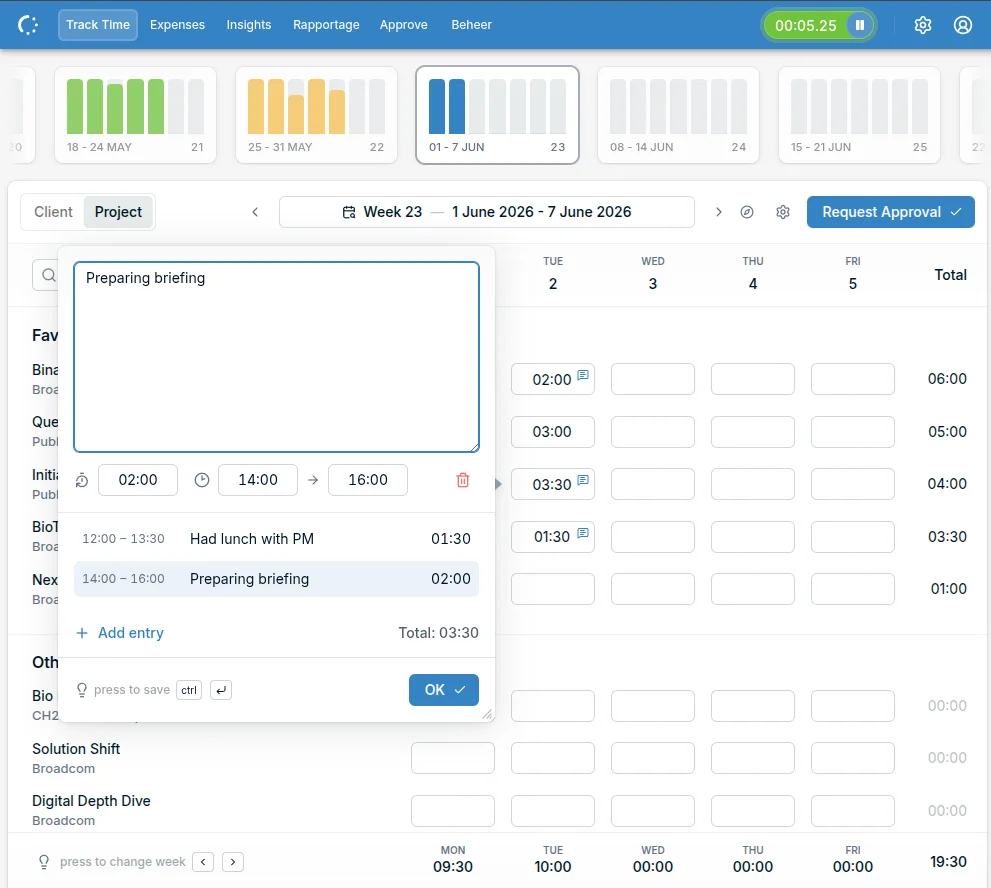
Select List in the top-left of the timesheet to see your entries grouped by day. Each entry has its own line showing the project, task, duration, and a preview of the comment. You can see what those three hours were for without opening the entry.
List view only shows tracked time. The Client and Project views still show all your assigned work, including projects you haven’t logged time on. Switch between them whenever you like; eHour remembers your choice.
Use the grid or your phone
For those who fill in a week at once, the familiar grid is still there. You can navigate the whole timesheet with the keyboard, and favorite projects are now available in the Client view too. The Today button brings you back to the current week.
On your phone, the rebuilt timesheet puts recently used projects first, so there’s less to scroll through when you want to log time away from your desk.
Need to make a correction? You can use negative time entries to adjust your hours. You can also save a comment without a duration; it becomes a 0:00 entry. Clearing a cell removes the entry as before.
Track time from an AI assistant
Earlier this year, we introduced the eHour MCP server so you can track time from MCP-compatible assistants such as Codex, Claude Code, and Cursor. The integration now handles more of the changes that come up during a working day.
An assistant can update a timer while it is running or attach an existing timer to the right project and task. If you started one by mistake, it can discard the timer without creating a time entry. For example, you can ask it to:
- Move a running timer to another project and add a comment.
- Attach a timer to the task you were working on before lunch.
- Discard a timer without logging the time.
Comments can be included when tracking time, so context from the conversation stays with the entry. You can also ask for project or timesheet totals after adding or adjusting time, without opening a separate report. Common requests now need fewer calls too, making them faster and using fewer tokens.
Setup instructions are available in the eHour Knowledge Base.
Defaults that fit the way your team works
The timesheet offers two ways to add comments: Single entry and Multiple entries. Admins can now select the organisation-wide default and decide whether individual users may override it.
There is also a new budget visibility setting. Project budgets used to be visible to everyone when opening a project from the timesheet. Admins can now keep them visible to managers only or make them available to all time trackers.
To make these options easier to find, the admin area has been reorganised into clearer sections:
- Regional Settings for language and currency.
- Time Tracking for options such as the comment window and timer visibility.
- Work Defaults for rules such as the number of hours someone may track.
- Rates & Budgets for financial settings, including budget visibility.
Try it with your own projects. Start a free 14-day trial and see which way of tracking time works best for you.