
Last updated: By Casper van Schie
Excel timesheet template: build one fast, then know its limits
If you came here for a timesheet template, you can make one in two minutes with ChatGPT, Copilot or Gemini. Use the prompt on this page to get a weekly sheet for Excel or Google Sheets, with projects, breaks, totals, billable hours, and sign-off lines. Then take a hard look at the part a template cannot solve: whether the hours are correct, submitted, approved, locked, and ready for reports or billing.
Create your own timesheet template with AI
In a time when people use AI more and more, just create the template yourself. This prompt gives you a starting point. Refine it to your situation and taste.
Copy the prompt, paste it into ChatGPT, Copilot or Gemini, and fill in the four bracketed parts: Excel or Google Sheets, your team name, your projects or clients, and your normal weekly hours. The assistant builds a weekly sheet with two rows per day, project and billable dropdowns, totals, overtime, and a sign-off block. If it cannot make a file, it gives you the exact layout and formulas for a manual build.
Timesheet template prompt
Build me a weekly timesheet template for [Excel or Google Sheets].

About my team:
- Team or company name: [name]
- Projects or clients we track time against: [list them, or write "none"]
- Normal working hours per week: [for example 40]

If you can create a downloadable file, create it. If you cannot, give me the exact layout instead: every cell address, every header, and every formula, so I can build it myself in 10 minutes.

The template needs:

1. A header block: employee name, week starting (a Monday), and the team or company name.
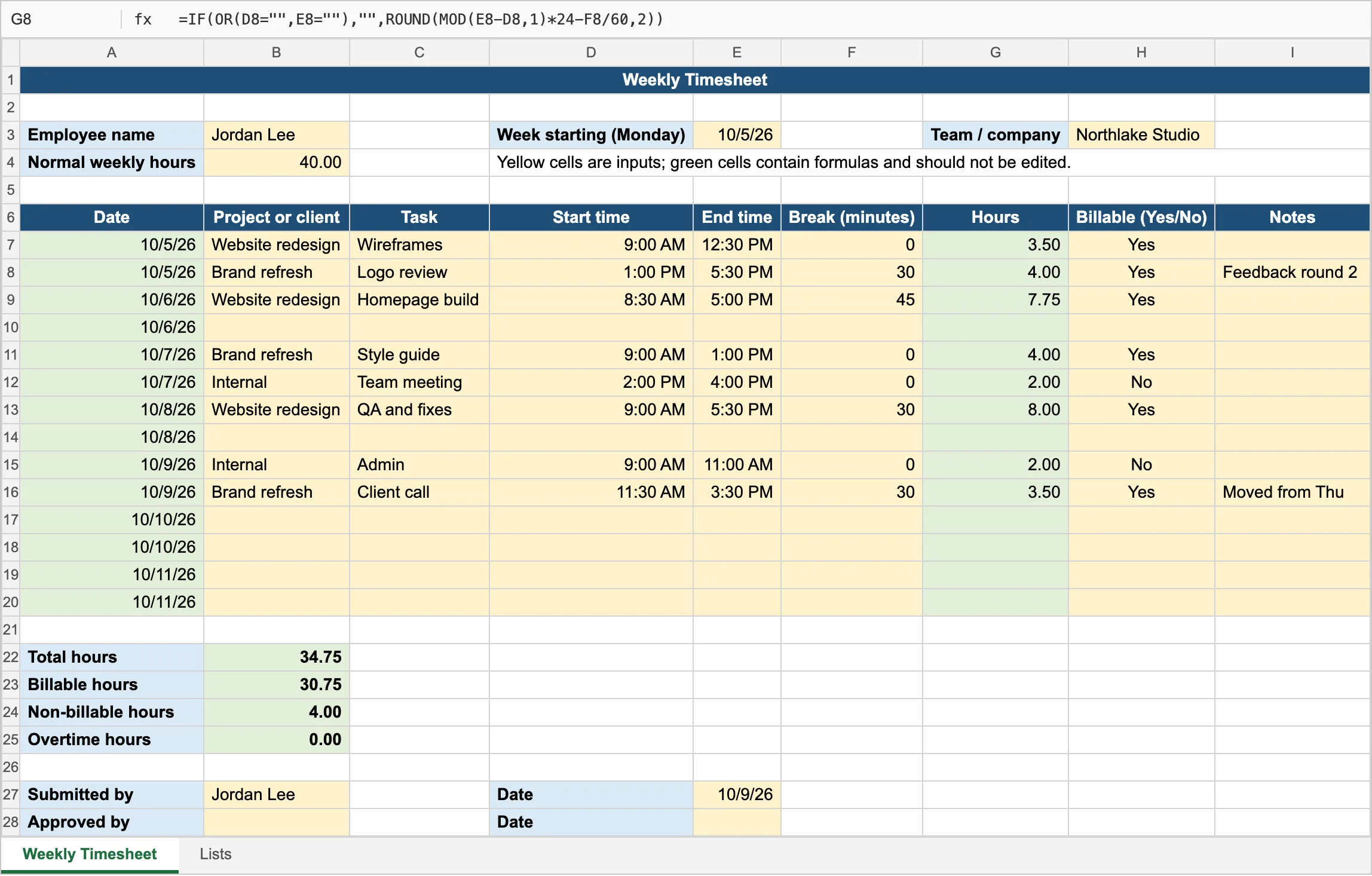
2. Two rows per day, Monday to Sunday (14 rows), so a day can be split across two projects, with these columns: Date, Project or client, Task, Start time, End time, Break (minutes), Hours, Billable (Yes/No), Notes.
3. Date: the Monday from the header plus 0 to 6 days, in the date format of my region.
4. Hours: worked hours as a decimal, rounded to 2 places, that also works when a shift ends after midnight. Use =ROUND(MOD(End-Start,1)*24 - Break/60, 2), and show nothing when Start or End is empty.
5. A dropdown for Project or client, filled from my list, and a Yes/No dropdown for Billable.
6. Totals under the table: total hours, billable hours, non-billable hours, and overtime above my normal weekly hours (never below zero).
7. A sign-off block: "Submitted by", "Approved by", and a date next to each.
8. Formula cells locked or clearly shaded, so nobody types over them by accident.

Use only formulas that work in both Excel and Google Sheets. At the end, list the formulas you used and tell me in two sentences how to copy the sheet for next week.We tested the prompt on October 9, 2026, in Copilot and Gemini in the browser, and with ChatGPT’s model through the OpenAI API. We ran it for Excel and for Google Sheets. Every run returned either a working file or a complete cell-by-cell build plan. A shift from 22:00 to 06:00 with no break came out as 8 hours; 09:00 to 17:00 with a 30-minute break came out as 7.5. In our runs, the assistants shaded the formula cells but did not switch on sheet protection. If that matters, protect the sheet yourself.
The template works until the hours need to be trusted
A consultancy billing Philips for project hours might start with a simple Excel timesheet: one tab per week, a project column, a total at the bottom. That was a reasonable choice. Excel is free, familiar, and already on most people’s laptops.
For a small team, it can work for a while. Everyone knows how to type into a cell, copy a tab for next week, and send a file to the person who asked for it.
The sheet is only the first part. The harder part is getting correct hours from people into an invoice, a payroll run, or a project report without losing confidence in the numbers along the way.
A spreadsheet can collect hours, but it cannot tell you whether those hours are right.
Correct? Anyone can type anything in any cell. A formula can be overwritten. A total can look fine because the cell still has a number in it, even if the formula behind it is gone. Unless someone checks every tab and every formula, nobody notices.
Approved? A template has no real submit step and no real approve step. “Approved” usually means an email, a file name, a colored cell, or a note in the sheet. That may be enough when everyone remembers what happened. It becomes fragile when there are more people, more projects, or a client asking who signed off on the hours.
Accounted for? Missing weeks and missing people are easy to miss. The files sit in inboxes, shared drives, chat threads, or local folders. You only know what is missing after someone counts the sheets, compares them with the team list, and chases the gaps.
Validated? After a sheet is sent, a number can change. A cell can be edited, a row can be deleted, a formula can be pasted over. Unless the file is locked down and tracked carefully, it is hard to see who changed what and when.
This is the biggest weakness of an Excel timesheet template. The chasing, merging, and fixing all come from the same place: the template collects entries, but it does not create a process around the hours.
Excel stays a good choice for the analysis.
Move entry and approval into eHour, keep Excel for analysis
At month-end, finance has approved hours ready for an invoice, a payroll run, or a project report. Managers have reviewed the timesheets. Missing weeks have been called out before the export reaches Excel.
eHour keeps the familiar weekly timesheet. The four checks happen before the spreadsheet work starts.
Correct: people log hours only on the projects they are assigned to.
Approved: a manager approves each timesheet in one or two steps, a week or a month at a time in batches. A rejected timesheet goes back with a comment.
Accounted for: the Missing Timesheets report shows who has not submitted. Automated reminders go out before anyone chases by hand.
Validated: approved timesheets lock. Changes to time entries are recorded with who made them and when.
Excel stays in the workflow for analysis. Approved hours export to Excel with typed numbers and formulas, to Google Sheets or CSV, or feed the Power BI template. Use the spreadsheet for billing checks and the board pack after the hours have been entered, approved, and locked.
Setup can start from the structure you already have. Clients, users and assignments import from Excel.
A template costs €0. eHour costs €4.49 ($4.99) per user per month, billed yearly, or €4.99 ($5.49) per user per month on monthly billing. That is less than a coffee per person per month, and it buys the part the template cannot give you: correct, approved, accounted-for, validated hours.
When hours are locked, use the export prompt to build your finance workbook.
Build a finance workbook from an eHour export
Excel often stays where finance works with the hours. eHour makes those hours approved and locked first. This prompt starts from an eHour Excel report export and turns it into a workbook for finance: a summary per client and project, hours per employee per week, an Invoice sheet for the client you choose, and a check for rows that are not approved when the export includes approval status.
Treat it as a starting point, not a finished finance model. Reports in eHour are custom: you choose columns, grouping, filters, and sort order before you export. The prompt first reads the file, finds the header row, maps the columns, and says what it will use. It builds only what the export allows. If a sheet or calculation needs a missing column, it names the column to add to the report in eHour. Run it once, then continue the chat to adjust the workbook to your billing rules, month structure, or reporting format.
eHour export to finance workbook prompt
I attached an Excel export from a report in eHour, our time tracking tool. We build our own reports,
so the columns and the grouping can differ from export to export. Build me a workbook for
[Excel or Google Sheets] that processes these approved hours.

Step 1, before you build anything, describe the export:
- Which row holds the column headers, and which columns there are.
- Whether each row is one time entry, or a total for a group (for example per project or per week).
- Which rows are not time entries: the header, totals, subtotals, empty rows, and the "Generated on"
  line at the bottom. Every formula must count only time-entry rows, for example by requiring a
  date and an hours value in the same row, so nothing counts twice and the check counts no extra rows.
- Which column you will use for each of these, if it exists: date or period, employee, client,
  project, hours, billable (yes/no), hourly rate or amount, approval status.
If the hours column or the date column is missing or unclear, ask me before you continue.

Step 2, build the workbook. Build only the parts that the columns allow, and for each part you skip,
tell me which column to add to the report in eHour.
1. A sheet named Data with the export, unchanged. Everything else reads from this sheet, so next
   month I can paste a new export with the same columns over it.
2. If there is an approval-status column: a check at the top that counts rows that are not approved,
   with a clear warning when the count is not zero. If there is none, say that you assume the report
   was filtered on approved hours.
3. A sheet named Summary: hours per client and per project, split into billable and non-billable when
   that column exists, with the amount for billable hours when there is a rate or an amount.
4. A sheet named Weeks: hours per employee per week, if the export has dates and employees.
5. A sheet named Invoice, if the export has clients: for one client that I choose from a dropdown,
   the billable hours per project and the total amount.

If you can create a downloadable file, create it. If you cannot, give me the exact layout: every
sheet, every cell address and every formula.

Use only formulas that work in every version of Excel and in Google Sheets: SUM, SUMIFS, COUNTIFS,
IF, TEXT. Do not use UNIQUE, FILTER, SORT, XLOOKUP, LET or other dynamic-array functions, and no pivot
tables. Write the lists of clients, projects, employees and weeks as plain values, and tell me where
to add a new one next month.

At the end, tell me in two sentences how to refresh the workbook with next month's export.Use the Excel export, not CSV. Filter the report on approval status “Approved” before you export, or add the approval status column.
Example follow-up requests:
- My dates show as text. Convert them to real dates.
- My numbers use a decimal comma. Fix the totals.
- Group the Summary by month instead of by client.
- Add one sheet per client that I can send with the invoice.
We tested the prompt on October 11, 2026 with ChatGPT through the OpenAI API on four export layouts: flat, grouped with subtotals, without rate and approval columns, and without a date column, then spot-checked it in another assistant with the results opened in Excel.
The workbook is yours; eHour support helps with the export, not with the sheet you build on it.
Excel timesheet template vs eHour
| Question | Excel template | eHour |
|---|---|---|
| Are the hours correct? | Anyone can type over cells. | Hours go only on assigned projects. |
| Are they approved? | A signature line or an email. | One- or two-step approval, with rejection comments. |
| Is anyone missing? | Someone has to check. | Missing Timesheets report and automated reminders. |
| Can a number change after sign-off? | Yes, unless the file is locked. | Approved timesheets lock; time changes are recorded. |
| Analysis in Excel | Works well once cleaned. | Exports approved hours to Excel, Google Sheets or Power BI. |
| Price | €0 | €4.49 ($4.99) per user per month, billed yearly. |
We build eHour, so read this comparison with that in mind. If your team is small, the work is simple and everyone trusts the numbers, the prompt and a template are honestly enough.