Time Tracking Reports
Reporting that keeps up with the question
From billable utilization and budget burn to approval status and project progress, eHour helps you move from a quick overview to the exact report you need.
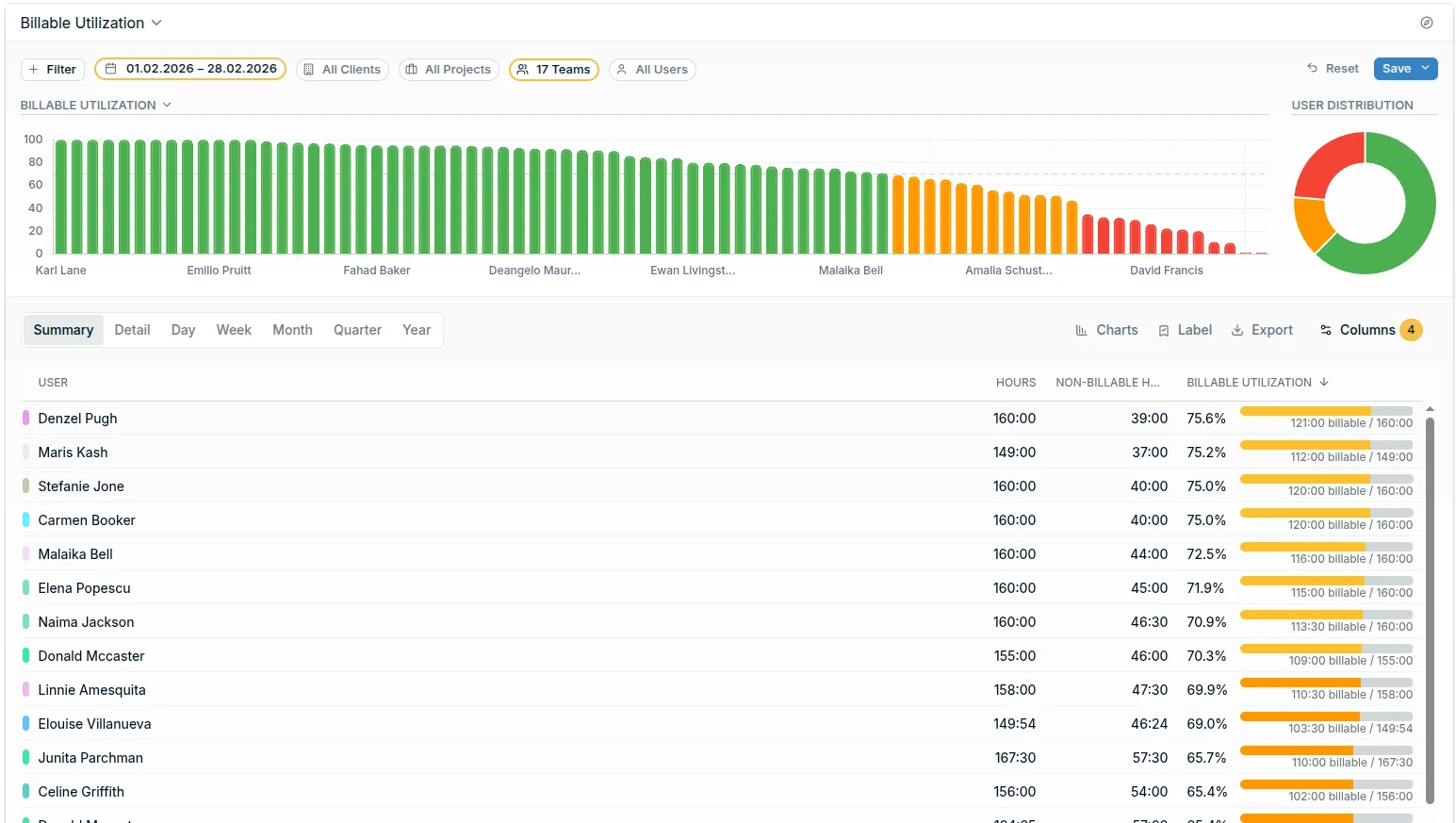
From dashboard overview to custom report
Start with Insights for a quick view of key time data, then move into reports when you need the detail. Filter, group, drill down, save and export the view behind the question.
Features
Start close to the answer
Predefined reports. Billable hours, non-billable work, budgets, utilization, approvals and not-tracked time are ready to run. Start from one of those instead of building a report from scratch.
Billable and non-billable hours
Time budget, by Project
Spot what needs attention
Insights dashboards. The quick scan before you dig in. Spot billable utilization dropping, contracted hours being exceeded or a project nearing its budget, then open Reports for the detail.
Shape the report yourself
The custom report builder. When the predefined set does not cover it. Filter, group, sort and drill into time by client, project, user, task, tag, custom field, approval status, date, rate or billable status.

Save, share and export
Saved views and exports. Save a view once, then share it with colleagues or export to Excel, CSV, PDF and Google Sheets. Finance, managers and clients all work from the same numbers.
Reporting Features
Flexible tools to slice, schedule, and share your time data.
Ready-made Reports
Start with built-in reports for the most common questions: tracked time by project, client, or user. See top performers by hours or revenue, spot projects running out of budget, and compare contracted vs. actual hours. No setup required.
Custom Report Builder
Need something different? Build your own reports with flexible grouping, column selection, and advanced filtering. Save custom configurations for instant reuse and consistent reporting.
Timesheet Approvals
Review and approve timesheets before they hit reports or invoices. Catch errors early and keep your data clean at the source.
Contracted vs Actual
Compare each person's contracted hours with what they logged for a selected period. Spot missing or unusually high totals before payroll or billing.
Scheduled Reports
Automate reporting with scheduled email delivery. Set up key reports to be sent daily, weekly, or monthly, keeping stakeholders informed without manual effort.
Export & Integration
Export reports to Excel, CSV or PDF for payroll integration, advanced analysis, or importing into Power BI platforms. Work with your data anywhere.
What do our users say?
Our external project leader wanted first to have an overview of all hours logged per individual team member before invoicing the client. With eHour, I was able to have all data right there on my screen in a single comprehensible report. After scheduling it, it is sent by email every Friday to the project leader without any interference from me.

Casper van Schie
US Media
Try eHour free for 14 Days
Set up in minutes. No card, no call with sales.
No credit card required
Access to all features
Takes seconds to get started
Then €4.99 ($5.49) per user per month
Frequently Asked Questions
What is a time tracking report?
How do I track project budgets in reports?
What is a billable hours report?
What should a utilization report include?
What reports come built-in with eHour?
- Track daily hours and revenue by project, client, or team member
- See which projects and clients generate the most time or revenue
- Spot projects approaching their budget limit before it's too late
- Review expenses by category, project, client, or user, with line-level detail when needed
- Compare what each person is contracted to work against what they actually logged
- View pending timesheets waiting for review or completed ones ready for billing