Reporting, redesigned from filter to export
Explore time data with richer filters, drill-down reporting, new utilization and profitability columns, shareable reports, and better exports.
We previewed our redesigned reporting in 2024. It now matches the rest of eHour’s new interface and has become the default way to build reports. The previous reporting module is still available.
Since the preview, we have added more ways to find, analyse, and share time data. You can move from a broad question to the exact hours behind the answer, then save, share, or export the result.
Report filters
Reports now offer many more ways to filter time. A column filter can find entries by their comment, so you can include only work annotated with “Development,” for example. You can also filter by approval status and include people who did not track time during the selected period.
User, team, client, and project filters also support full keyboard navigation. After searching, you can select all matching results with Apply.
For reporting across changing teams, the view scope can include active people plus anyone who is archived but tracked time during the selected period. That keeps historical reports complete without filling current filters with every former user.
Drill-down filtering
A total in a report often leads to another question: which client, project, or person accounts for it? Instead of reopening the filters and searching for that value, click it in the report. eHour applies the filter and updates the results.
This makes it practical to start with a summary, spot something that needs a closer look, and narrow the report as questions come up. You can move from a client to a project, person, or other value until you reach the hours you need to check.
Time-entry tags
How much time did your team spend working from home? Add a tag while entering time, then filter your reports by that tag to see the hours across projects.
Admins define the available tags. Project managers choose which tags apply to their projects and whether people need to select one when tracking time.
These time-entry tags are separate from reporting labels, which reporters use for tasks such as marking hours as invoiced. The existing reporting tags have been renamed to Labels.
Utilization, profitability, and budgets
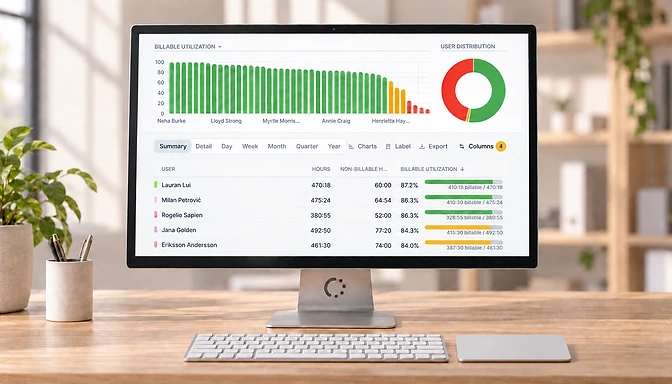
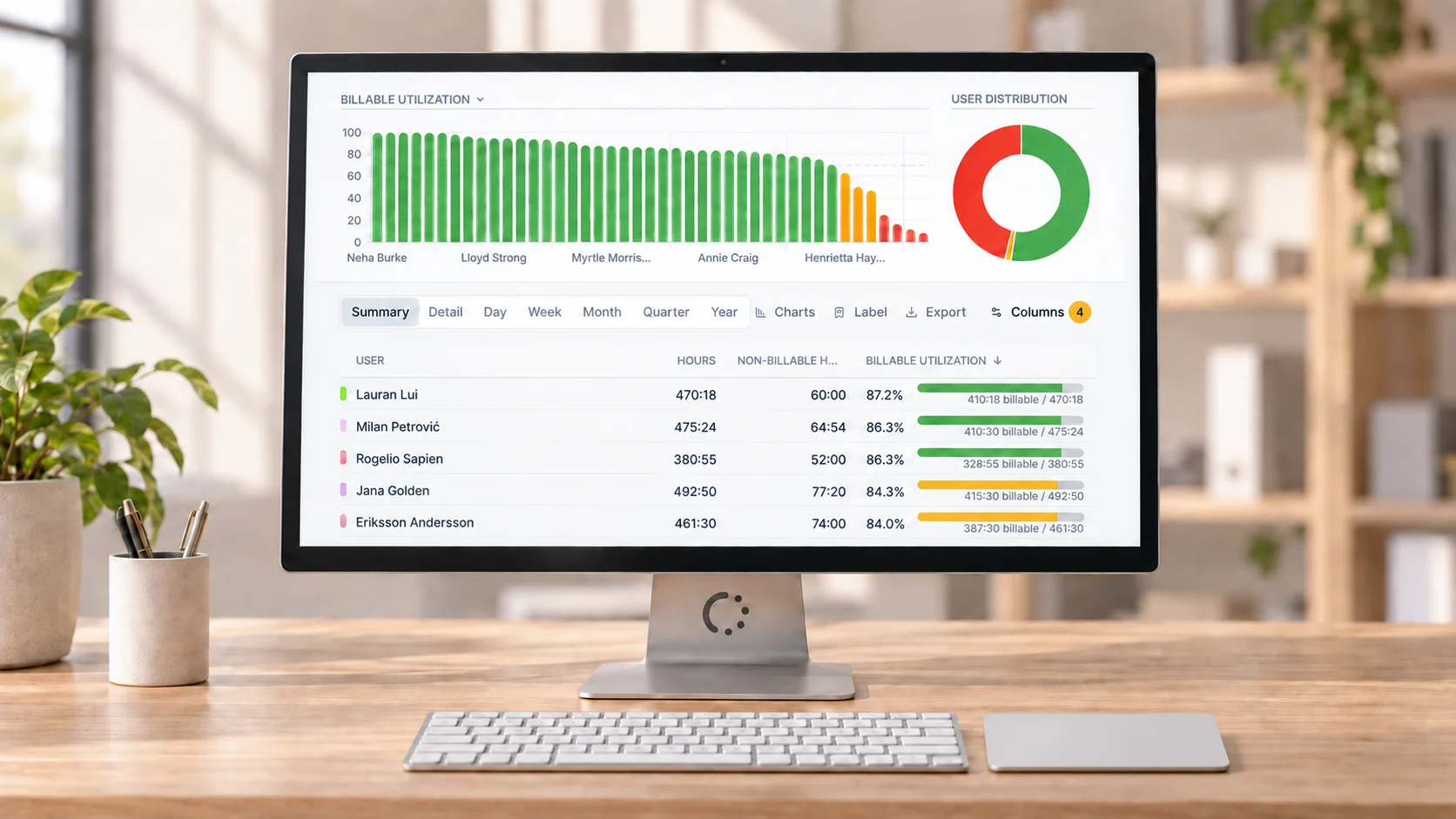
New calculated columns help put tracked time in context. Contract Utilization compares tracked time with contract hours, while Billable Utilization shows the balance between billable and non-billable work.
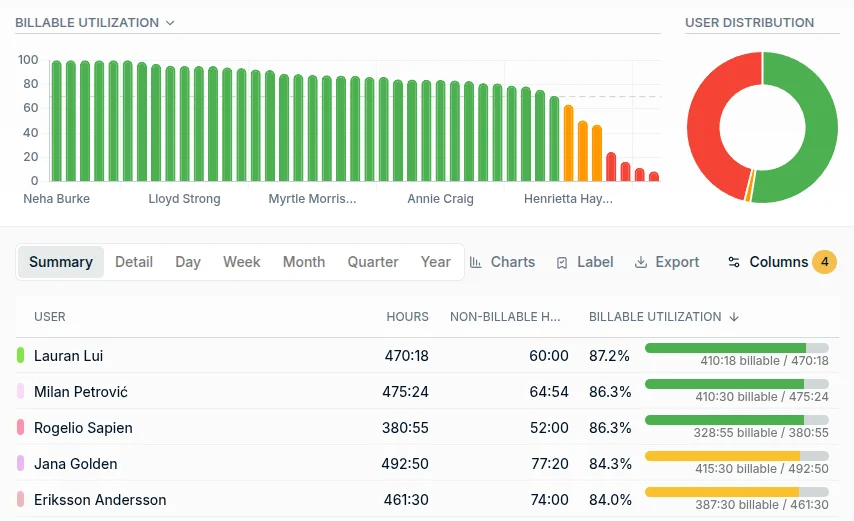
The Project Profitability report now includes the client and the absolute margin. Remove the project column and the same report becomes a client-level profitability overview. The Contracted vs Actual report is cleaner too, with duplicate columns removed and the most utilized people shown first.
Time-based budget columns are now included in the Project Budget Status report, and managers using Insights can filter projects across their full reporting hierarchy rather than only their direct reports.
Saved reports and exports
Saved reports can be shared directly with colleagues. Exports are available in CSV, Excel, PDF, and now Google Sheets. PDF exports include the chart shown in the report and format dates according to your country settings, so the exported version is ready to share without a separate screenshot or formatting pass.
eHour also remembers your last-used report, including its timeframe, filters, columns, grouping, sorting, and chart. Open Reporting and you can continue where you left off.
Take a closer look at reporting in eHour, or start a free trial to explore your own time data.